How do I share filters with my agents?
1 minute read
How do I share filters with my agents?
To make filters available to your entire team in the agent workspace (and save each agent from creating them manually), follow these steps:
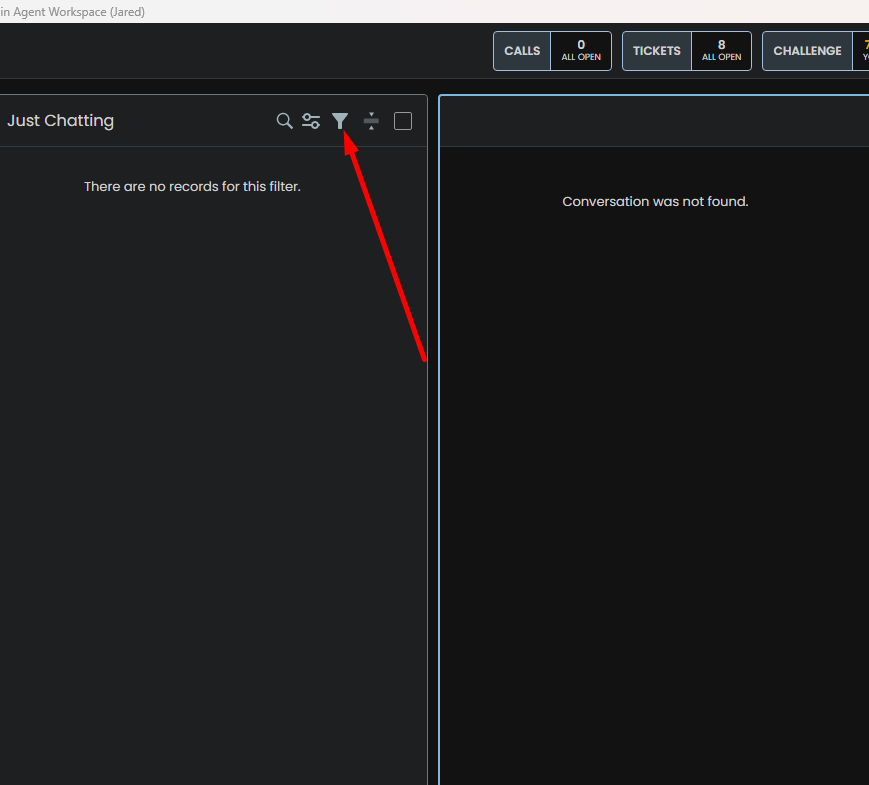
1. Create the filter you wish to share by clicking on the filter icon at the top left hand side in the agent workspace.
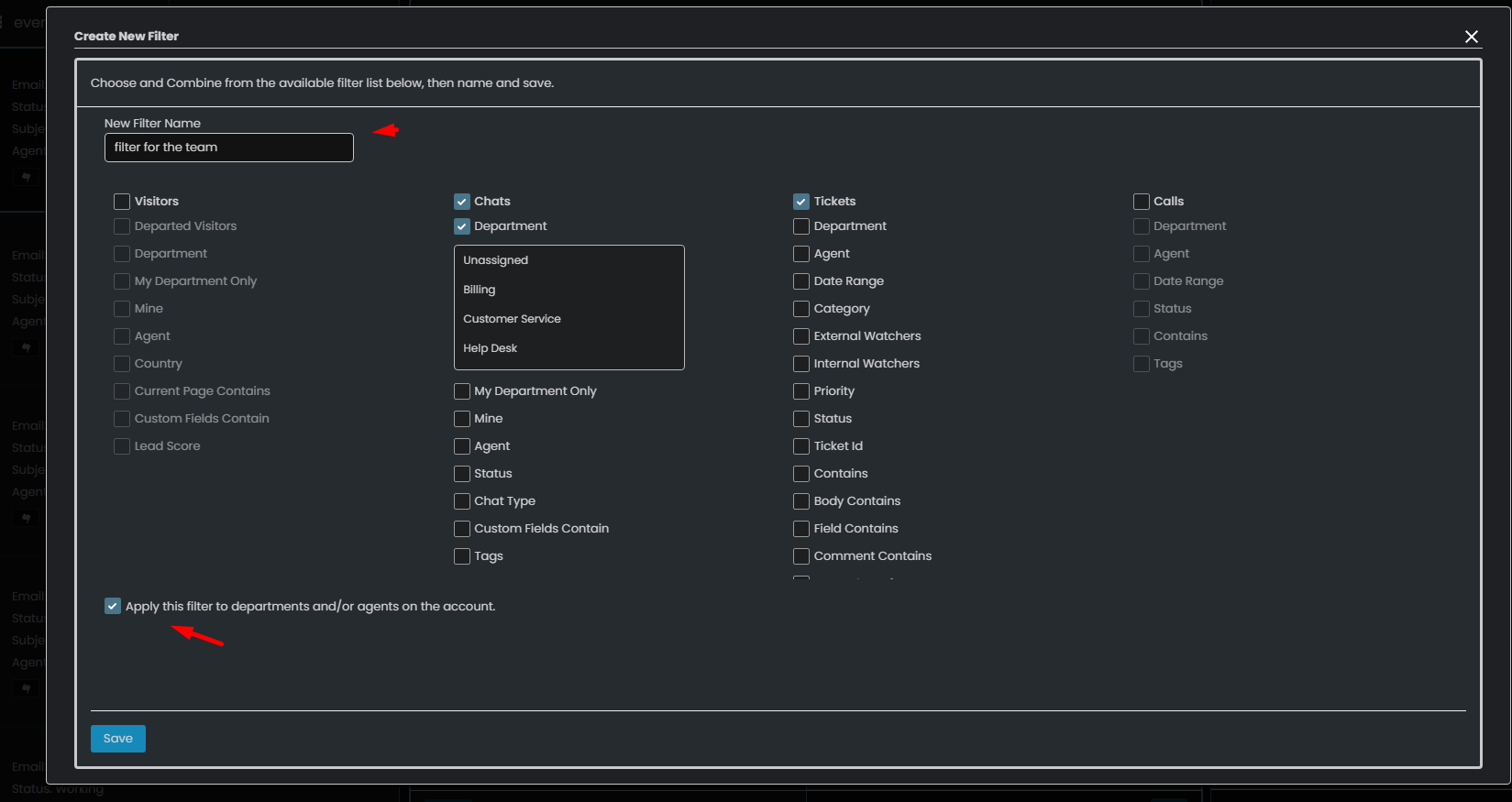
2. Click "Create new filter" then customize your options and select "Apply this filter to departments and/or agents on the account." Then click save.
3. To manage filter sharing when creating new departments:
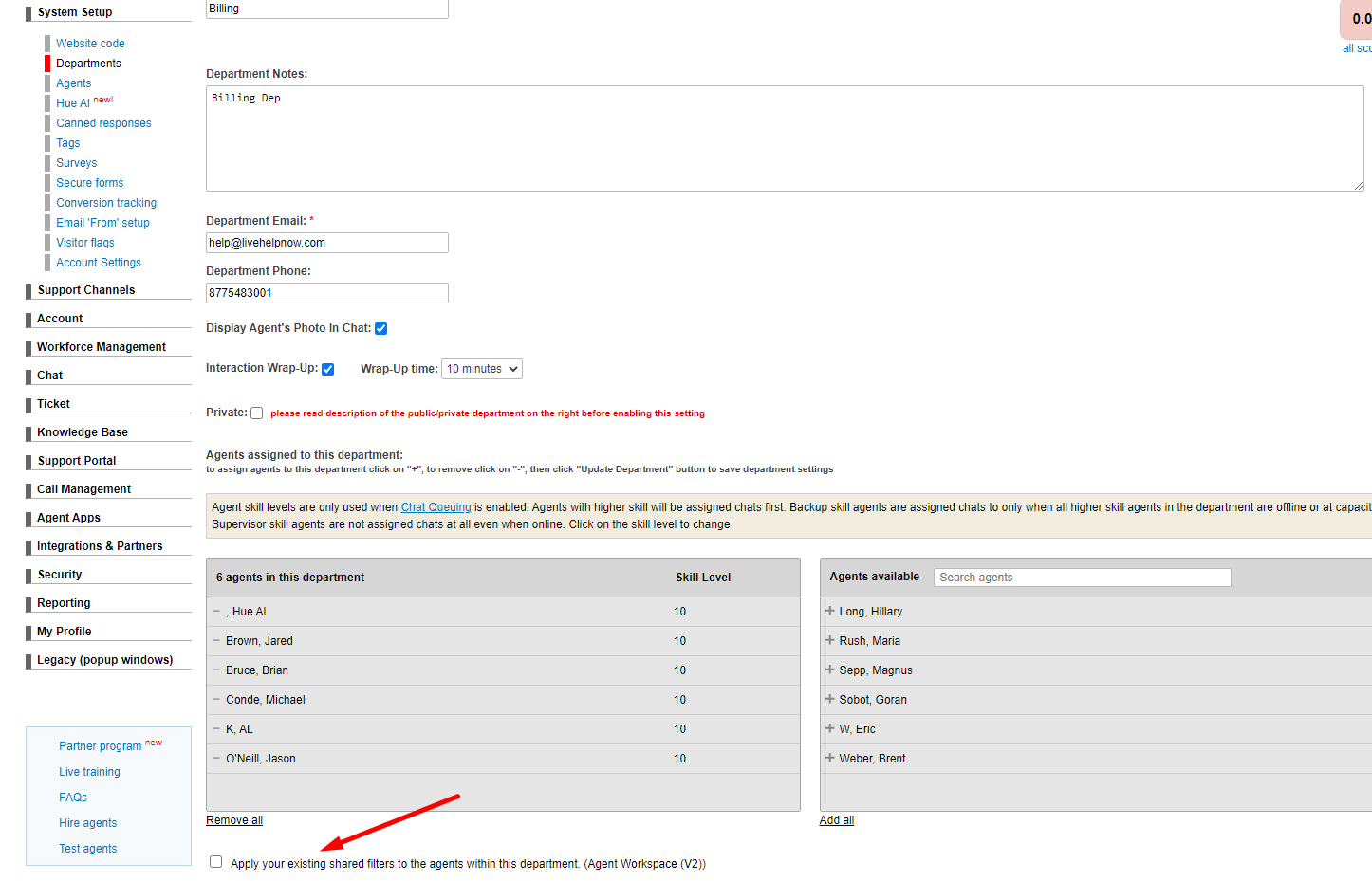
Please go to admin panel - System setup - Departments. Then choose the department you wish to edit. Select the check box "Apply your existing shared filters to the agents within this department. (Agent Workspace (V2))" Then select "Update Department" to apply the changes.
4. To manage filter sharing when creating new agents:
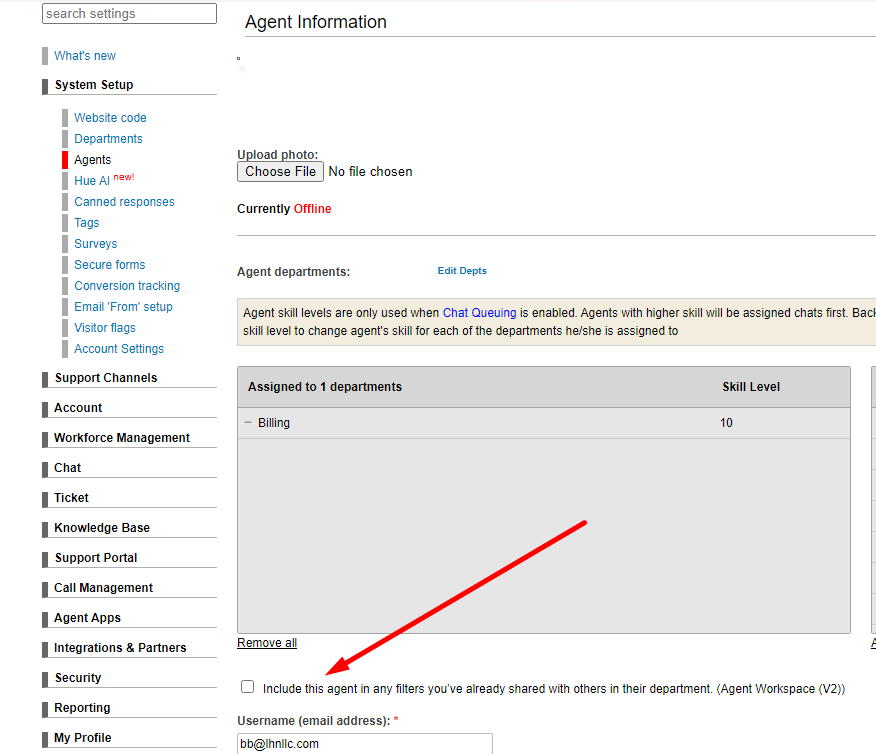
Please go to Admin panel - System setup - Agents - Click on the agent you wish to edit. Then select the "Include this agent in any filters you’ve already shared with others in their department. (Agent Workspace (V2))" and then click "Update Agent" to apply the changes.