
New Workspace Overview
7 minute read
I am new to the agent workspace, is there an overview?
Welcome to the new and improved Agent workspace!
This article will outline how to use the latest agent workspace. Here, you will find how to locate tools and functions with screenshots and full explanations. If you would like to schedule training for your staff, please reach out to Jared Brown [email protected]
Getting started:
Once you log into the workspace, you will see we have given it a digital face-lift.
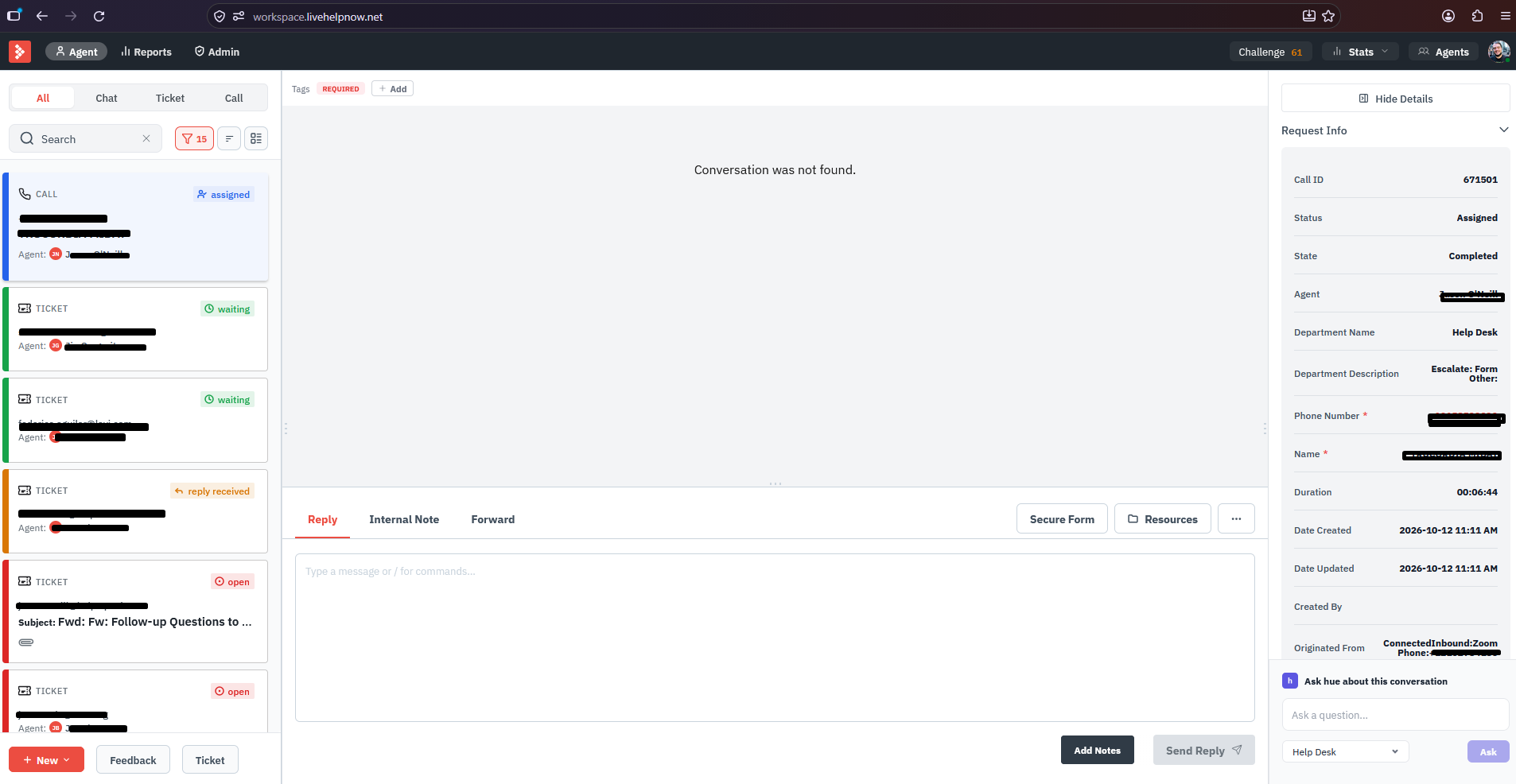
Challenge Score, Stats, Managing Agents, Setting yourself Online/Offline

Challenge shows how well you are utilizing our features to assist your customers.
Stats allows you to customize what stats you wish to see on screen for example active chats, ticket, etc.
Agents allows you view all agents and departments and check online/offline status. (Note: admins will have the option to log agents off as well)
Online/Offline this feature will allow you to set your status, custom agent settings, switch to the classic view, and Log out.
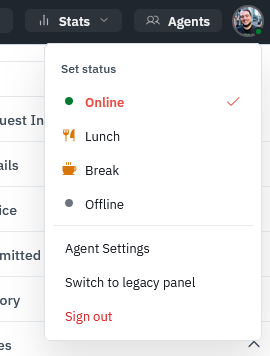
Agent settings allows you to customize your individual instance of the workspace:
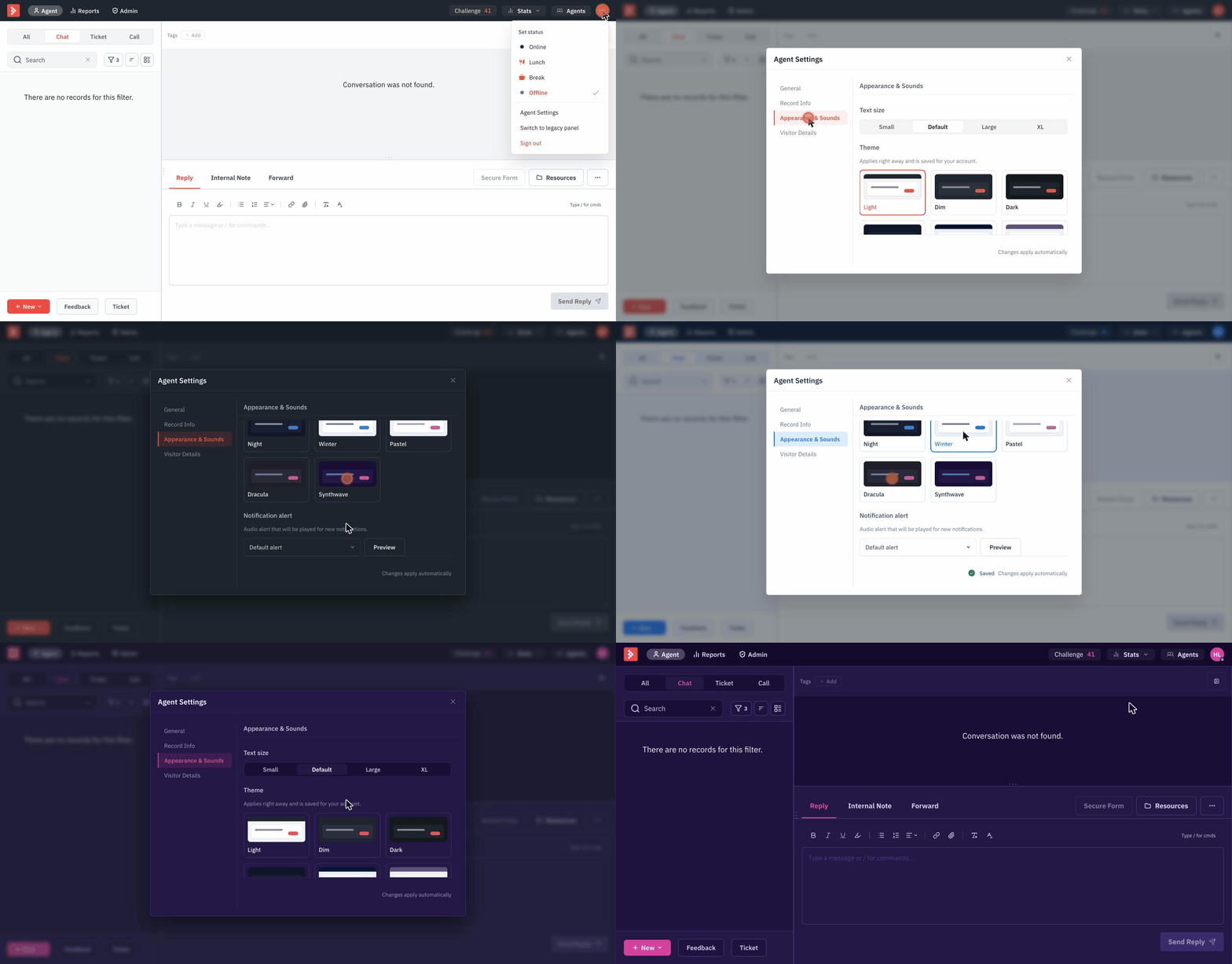
Records Tab
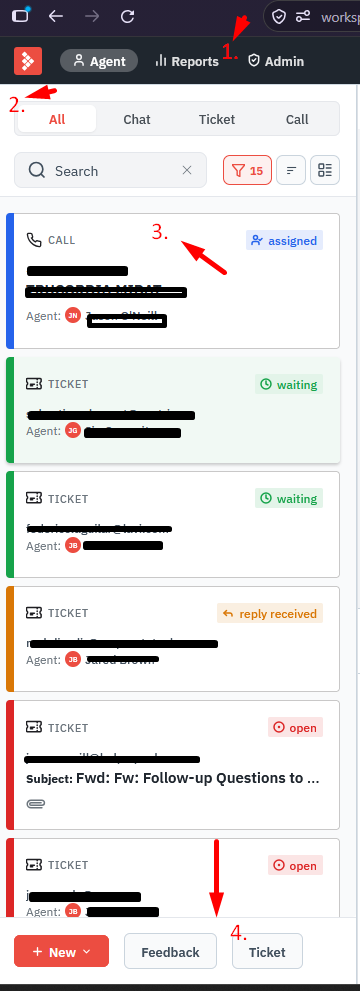
1. Navigation:
Agent will display the current workspace.
Reports will link to the analytics and reporting.
Admin will link to the Admin panel.
2. Record filters:
All will show every active record in every system you are subscribed to in a long list.
Chat will show all active chats.
Ticket will show all active tickets.
Call will show all active calls.
Search will allow you to search through records in your selected filter.
The funnel icon will allow you to create a new filter or select another pre-configured filter
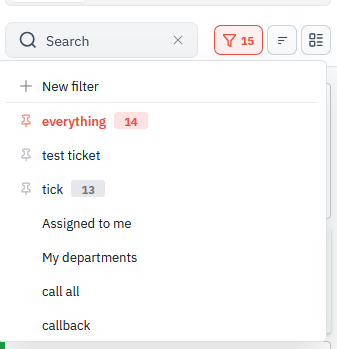
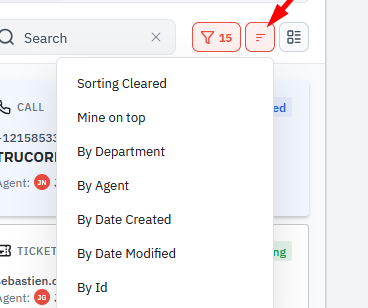
The sort icon will allow you to sort your records in different variations.
The Bulk select icon will allow you to select records in bulk. This can be helpful if need to resolve many tickets with the same resolution or reassigning many at a time.
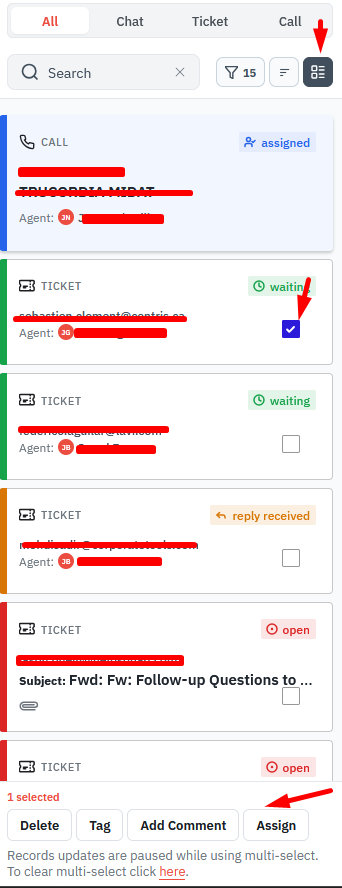
3. Records
Depending on what filter you have selected, these are the actual chats, ticket, or calls that are to be worked on. You can select a record to view and work on it.
4. New, Feedback, Ticket
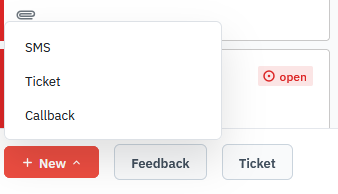
New will allow you to create a new outbound SMS chat (if subscribed to SMS) A new ticket (if subscribed to tickets) or a new Call request (if subscribed to Calls)
Feedback will allow you to submit feedback to us about anything in the system. This will help us continuously improve our offering to you!
Ticket will allow you to submit a ticket directly to our support staff.
Conversation Panel
This is where you will answer your chats, ticket, and calls.
Chat conversation panel
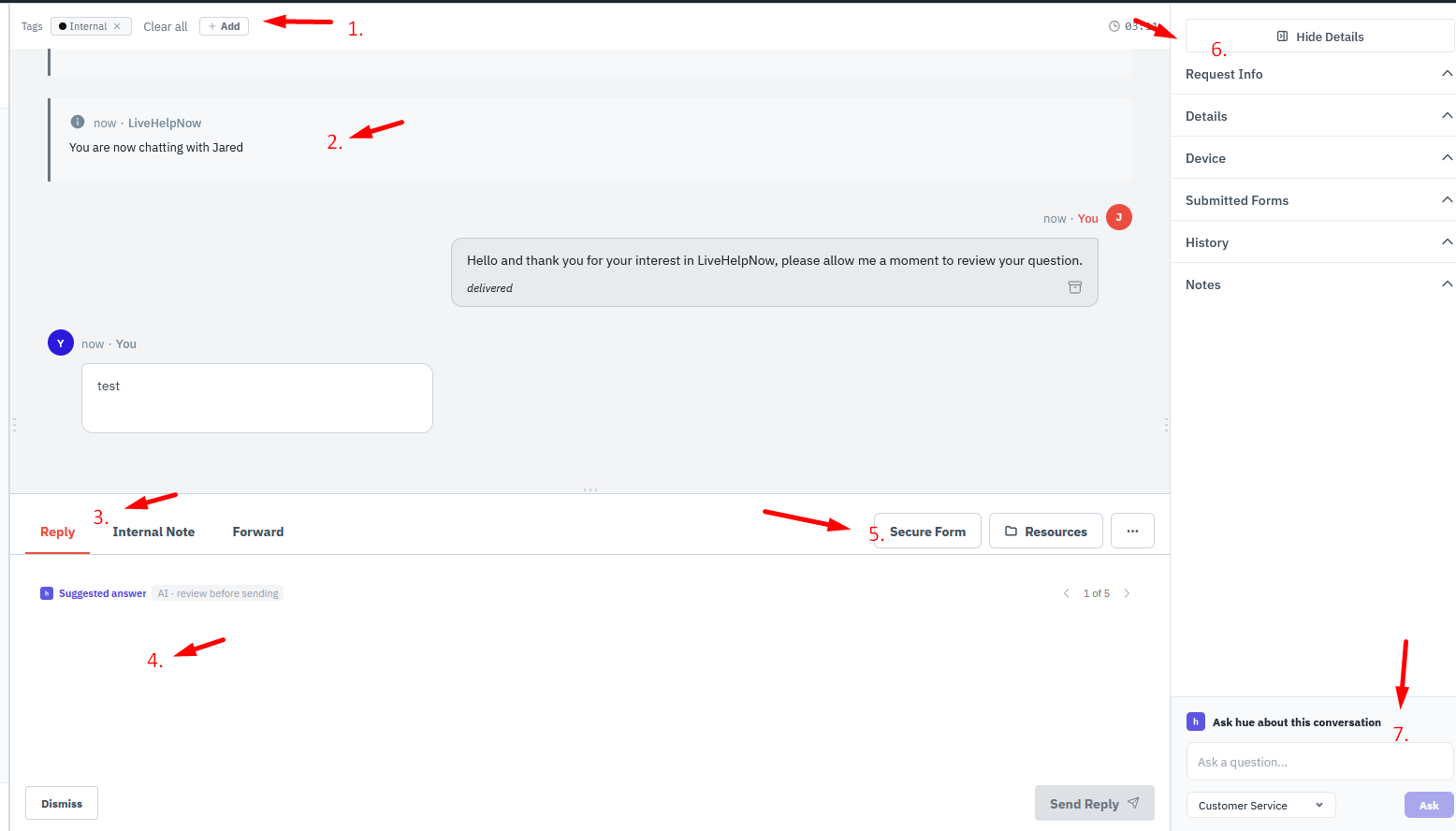
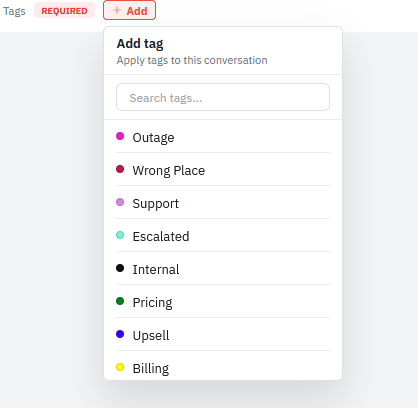
1. Tags allow you to label your interaction with a theme for example: tagging a chat with "billing question". Then the admin on the account can run a chat tag report to see what customers were asking about for a specific date range.
2. Conversation Is where the chat conversation, ticket body, or call request is displayed.
3. Reply is where you respond to the chat, ticket, or call request.
Internal Note allows you to write a note for your other agents to see if they take a chat or ticket from this customer in the future.
Forward allows you email the chat transcript or ticket to a third party.
4. Text box this is where you write your answer for your chat or ticket.
5. Secure Forms, Resources, Tools
Secure forms allow you send sensitive data within a chat or ticket like credit card details or medical documents.
Resources allow you to add a canned response, Knowledge Base article, or easily search your resolved tickets for a quick answer to respond to your chat or ticket.
Tools are a list of helpful item you can utilize while in chat or ticket.
Chat tools:
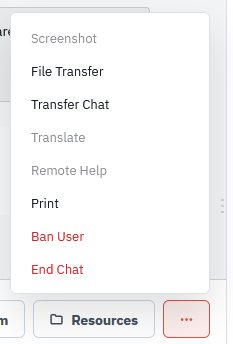
Screenshot take an automatic screenshot of the customer's screen. Legal notice: Capturing a customer's screen may be subject to privacy laws in your jurisdiction (GDPR, CCPA, HIPAA, etc.). You are responsible for obtaining the customer's consent before using this feature and for complying with applicable regulations. LiveHelpNow is not liable for misuse.
File Transfer allows you send or request a file to a customer.
Transfer Chat allows you to send a chat to another agent to take over.
Translate allows you put your current text in any language to the customer, and the customer's response will be in your language.
Remote Help allows you to connect a meetings tool like Zoom into your workspace to generate meeting links with a button click.
Print allows you print the current transcript.
Ban User ban an IP address from chatting on your site. (Note: the ban will last for 48 hours)
End Chat terminate the current chat immediately.
Ticket Conversation panel
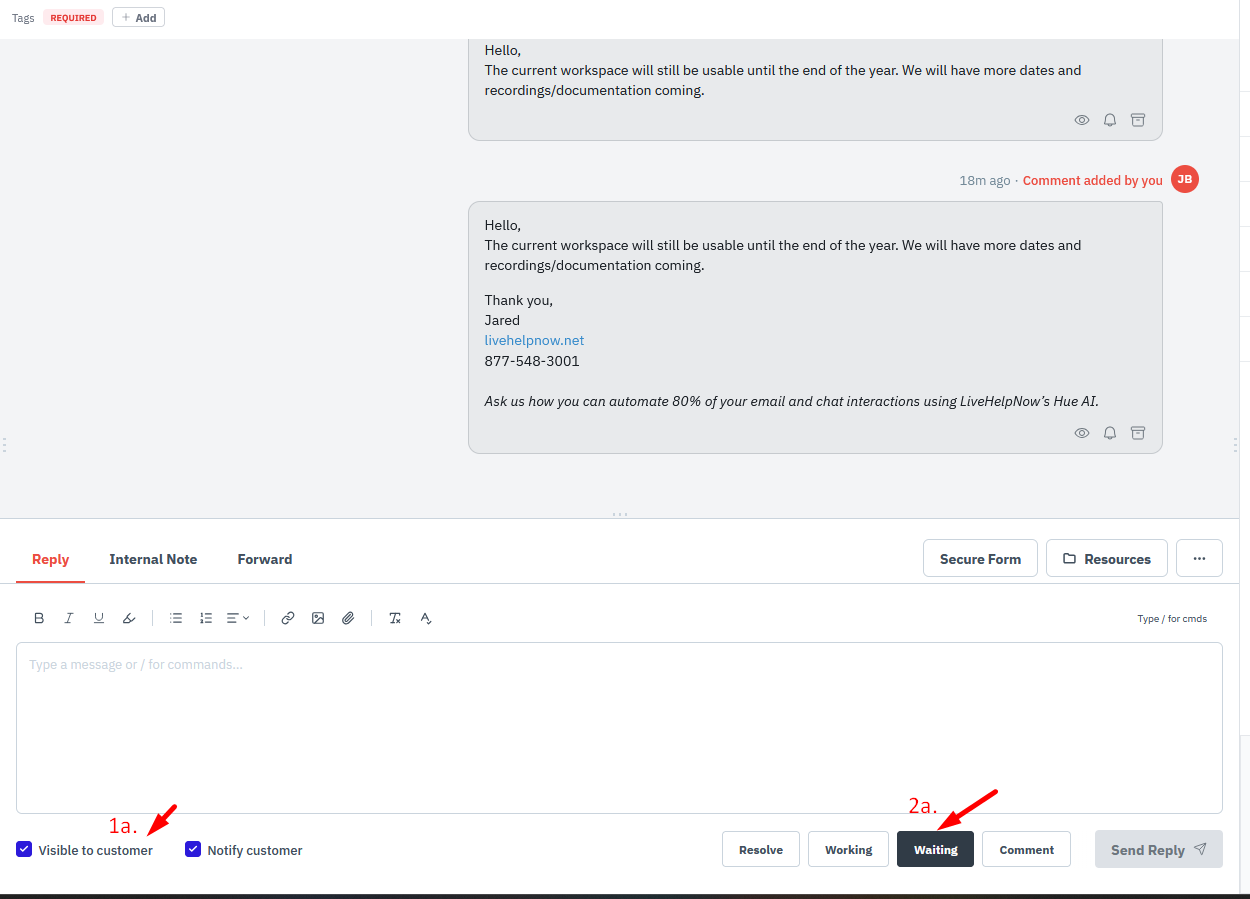
1a. Visible to customer allows you to set if you wish the response you are sending is seen by the customer.
Notify Customer allows you to set if you wish for the customer to get an email notification of your current response.
2a. Ticket statuses
Resolve allows you to close the ticket with your answer as the resolution.
Working allows you to set the ticket in a holding state while details are being worked out before resolving the ticket.
Waiting allows you to send a response to the customer and then you are waiting for their response.
Comment allows you to simplify add a comment to the existing ticket.
Ticket tools:
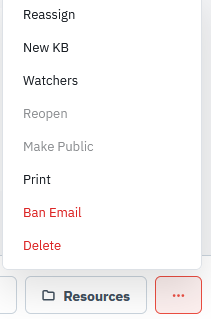
Reassign transfer your current ticket to another agent.
New KB allows you create a Knowledge Base article using the current ticket.
Watchers allows you add staff or customers as carbon copied recipients of the ongoing ticket interactions.
Reopen allows you to change a ticket status from "Closed" to "Open"
Make Public allows you to make a ticket with private comments publicly viewable.
Print allows you to print the current ticket.
Ban Email allows you to prevent an email from creating new tickets.
Delete allows you permanently remove a ticket from your system. (Note: only admins can delete tickets)
6. Details
Chat Details
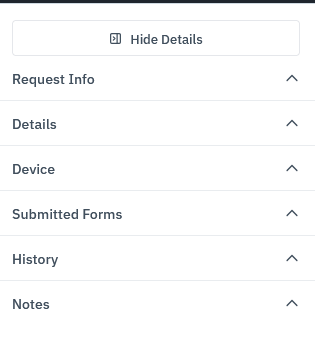
Hide Details allows you to hide this menu completely to give more space to work on your chat or ticket.
Request Info provides the details the customer submitted in the pre chat or ticket form upon submission.
Details provides the customers geographical location based on their IP address.
Device provides the customers browser/computer data.
Submitted Forms are any secure forms that are not set to delete instantly and can be reviewed.
History provides any previous chats are ticket submitted by the customer.
Notes any internal instruction you wish to add that only your other agents can view.
Ticket Details
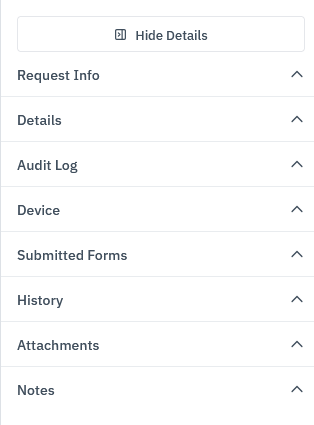
Hide Details allows you to hide this menu completely to give more space to work on your chat or ticket.
Request Info provides the details the customer submitted in the pre chat or ticket form upon submission.
Details provides the customers geographical location based on their IP address.
Audit Log provides the step by step life of the ticket, who interacted with it, what actions we completed.
Device provides the customers browser/computer data.
Submitted Forms are any secure forms that are not set to delete instantly and can be reviewed.
History provides any previous chats are ticket submitted by the customer.
Attachments any file attached via email that the customer provides within the ticket chain.
Notes any internal instruction you wish to add that only your other agents can view.
7. Ask HUE
If subscribed to our AI Chat and Ticket features, you can use AI to help suggest answers in your chats and tickets.