
Admin panel overview
7 minute read
Is there an overview of the admin panel?
Welcome to the new and improved Admin panel
This article will outline how to use the latest version of the Admin panel. Here, you will find how to locate tools and functions with screenshots and full explanations. If you would like to schedule training for your staff, please reach out to Jared Brown [email protected]
As you can see, we have upgraded the look and feel:
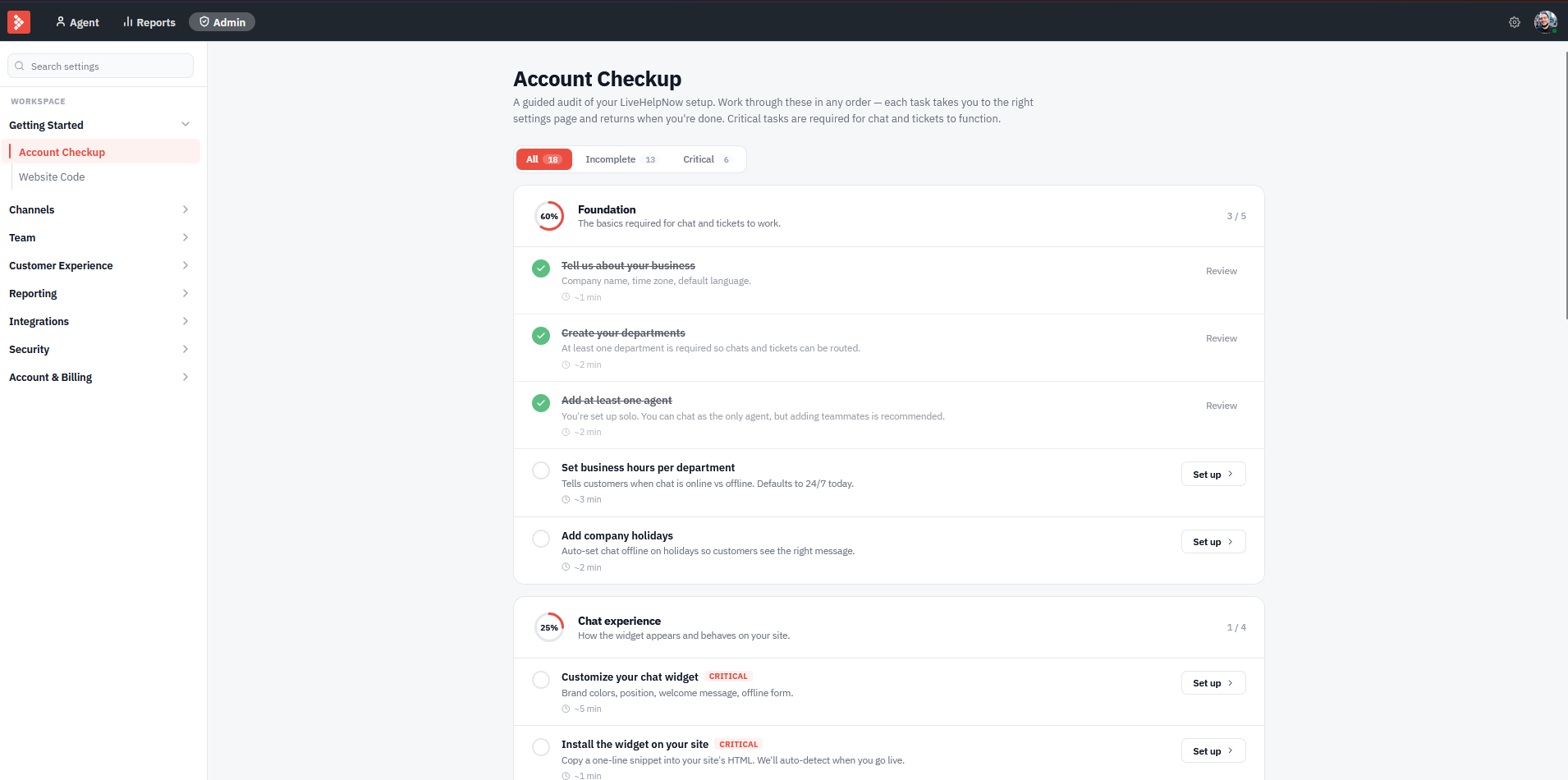
Getting started:
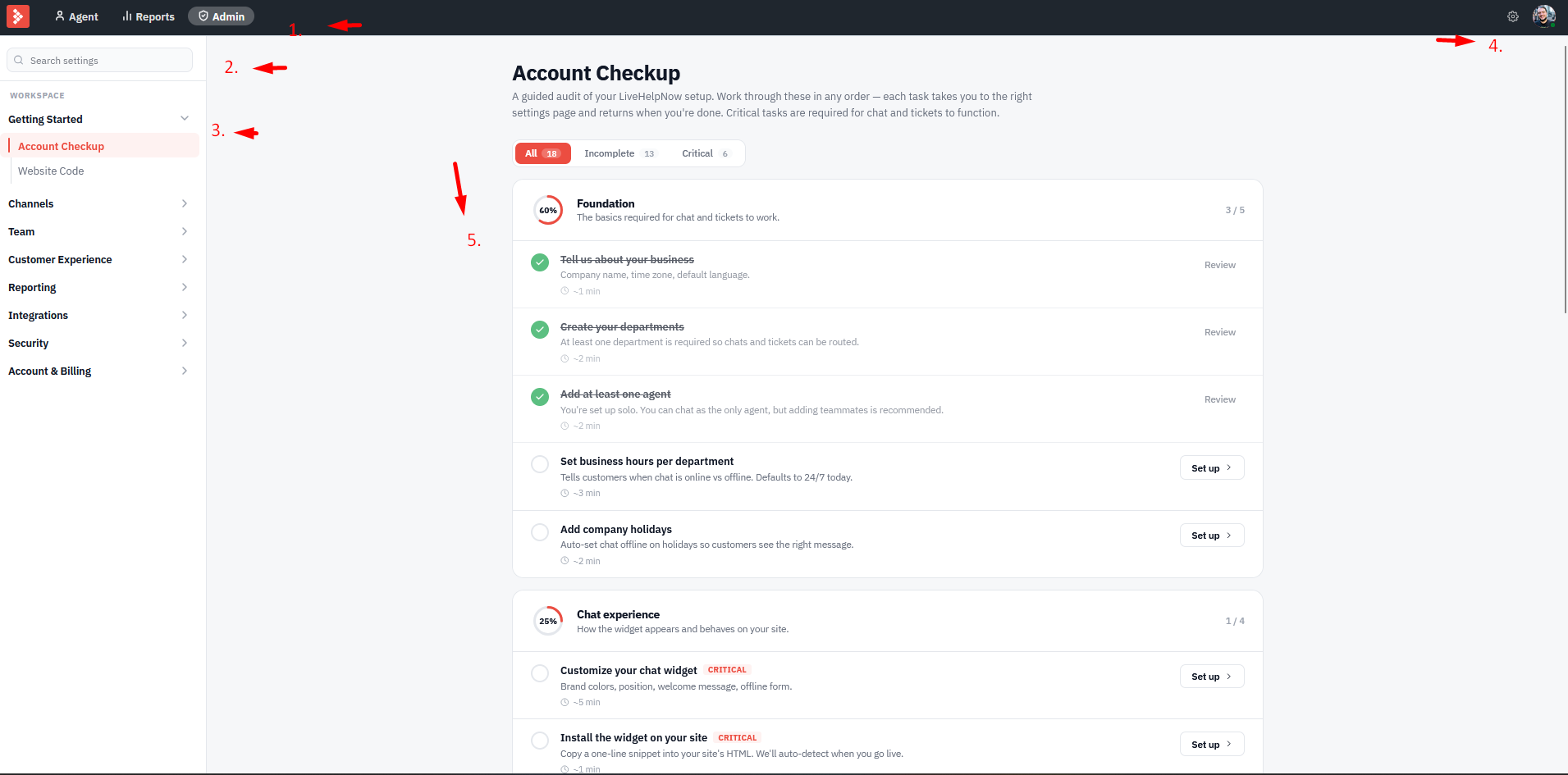
1. Navigation
Agent will display the current workspace.
Reports will link to the analytics and reporting.
Admin will link to the Admin panel.
2. Search Settings
Allows you to quick search settings via keyword instead of expanding all of the folders to find it.
3. Settings
Getting started:
Account Checkup A guided audit of your LiveHelpNow setup. Work through these in any order, each task takes you to
the right settings page and returns when you're done. Critical tasks are required for chat and tickets to function.
Website Code Your widget will display a chat window, ticket window, links to knowledge base or callbacks. Each widget can be configured for your unique needs. To easily find your widget code to install on your website, expand the widget row.
Channels:
This is where all of the configurations for each system reside.
Chat
Windows The content of your chat window (ex: pre-chat form, offline form, system messages, billboards, etc.) can be configured here. If you have more than one website, brand or use-case for unique messaging you can create unique chat windows to customize the experience.
Settings How live chat behaves across your departments including availability, routing, agent permissions and geography.
Automations Automations watch visitors on your website and act when they match: invite them to chat, show a promotion,
tag or score them, route them to a department or agent, or notify your team.
Queuing and Limits How incoming chats are distributed across your agents, and how many chats your account and each department take before showing offline.
SMS/Text Customers text your number; the conversation arrives in the Agent Workspace like a chat.
META Connect your Facebook, Instagram, and Whatsapp messages to LiveHelpNow, then you can take care of all incoming messages in one platform. Please note: You must be logged into LiveHelpNow via a web browser to configure these settings, you can not do so via the app.
Email and Tickets
Forms Build ticket submission forms for your website, widget or help center.
Settings Account-wide rules for how tickets are routed, composed, merged, and surfaced to customers. For ticket-by-ticket rules, use automations.
Notifications Customize who gets emailed about new tickets, comments, and assignments. You can also include a Do-not-notify list.
Categories and Templates Each category has its own sender and email templates. Tickets use their category's emails; anything else uses the default category.
Priorities Labels agents use to flag ticket urgency. Customers can also select a priority on the ticket form if you add a Priority field
Automations Automate ticket routing, tagging, and escalation. Active automations are checked in order each time a ticket changes.
Email 'From' Setup System emails (ticket confirmations, agent replies, automation notifications) are sent from a mail profile. Each profile sends from a validated domain — one whose DNS has the LiveHelpNow SPF record, so the emails deliver and aren't marked as spoofed.
Phone and Callbacks
Forms Build callback request forms for your website.
Settings Workflow, CRM logging, call routing, and missed-call handling for your phone integration.
Notifications Who gets alerted when a visitor requests a callback through one of your website forms. These are account-wide defaults — a form with its own notification list under Forms
uses that list instead of both settings below.
Knowledge Base and Support Portal
Support Portals Public-facing hubs where customers find answers, submit tickets, and access the knowledge base. Each portal has its own address, branding, content restrictions, and
sign-in rules.
Articles Articles are shown on your support portals and used by Hue (if subscribed) as grounding knowledge.
Content Blocks Reusable snippets you can drop into any knowledge base article. Edit a block once and every article using it updates automatically.
Content Links Reusable links you can drop into any knowledge base article.
Categories Organize your knowledge base articles into a hierarchy. Pin categories to feature them on the support portal home page.
Glossary Customize the labels, buttons and messages customers see on your support portal — call the Knowledge Base a "Help Center", rename "Tickets" to "Cases", whatever fits.
Comments Reader comments left on knowledge base articles. Approve one to show it on the article page (the article's subscribers are e-mailed), or delete it.
Look and Feel Your portal, your brand. Customize the portal's styles, add a module to its home page, and set up its chat pop-up. Changes apply only to LiveHelpNow — switch portals with the drop down above.
General Settings Agent notifications and the publishing workflow for your knowledge base articles.
Team:
Agents Manage agent accounts, roles, and permissions.
Departments Group agents and route conversations by team.
Shifts Define working hours and on-call schedules.
Holidays Set the days your team is unavailable.
Customer Experience:
Hue AI Sources Choose what Hue reads when it answers, and how it writes the answer. Settings apply per department.
Canned Responses Saved replies your agents can drop into a conversation. Organize them into folders.
Tags Label conversations so you can filter and report on them. Tags can also be applied automatically when a message matches a keyword.
Surveys Gather customer feedback around a conversation.
Secure Forms Collect sensitive information during a chat, through a ticket, or for a callback.
Reporting:
Reports Full analytical data we provide from our platform.
KPI Dashboards Visibility and optimization tool for contact centers and customer support operations. Compare agent performance, department CSAT scores, average response times, and other key metrics. Dashboards open in a separate analytics window and can be cast to large team displays.
Account Summary Email Scheduled reports delivered to your inbox. Configure one account-wide report plus optional per-department reports. Each report includes chat volume, response times, agent activity, and customer satisfaction for the chosen period.
Conversion Tracking Track when chats lead to sales, signups, or any other goal.
Integrations:
CRM Pass all chat data to your CRM automatically.
Marketing Push customer contact details from chats and offline messages into a Mailchimp audience and other marketing software.
Messaging Connect to outside SMS providers and other messaging platforms.
E-commerce Link to your Shopify or Shipstation accounts for those "Where's my order?" questions.
Meetings and Video Connect your Zoom Meeting account to generate quick meeting links via chat.
Developer Need advanced customization and function?, Have your own CRM? Need to use a custom API? All is found here.
Security:
Security and Compliance Account-wide controls for password policy, multi-factor authentication, and data handling. Changes apply to all users on this account.
Single Sign-On (SSO) Configure SAML and OAuth identity providers.
Banned IP Addresses IP addresses and CIDR ranges blocked from accessing your account's chat widget and ticket forms. Use to stop bots, scrapers, and repeat offenders.
Banned Email Addresses Email addresses blocked from submitting tickets or starting chats. Useful for stopping spam, abuse, and fraudulent senders.
Account and Billing:
Account Profile Your company's identity, contact details, and SMS registration info. These details appear on invoices and are required for carrier-regulated services like 10DLC SMS.
Subscriptions Products and add-ons on this account. Toggle to add or remove items, the cost summary updates as you go.
Billing Information How LiveHelpNow collects payment and where receipts and invoices are sent. Changes apply to your next renewal, current and past invoices are unaffected.
Invoice History Paid charges and credits for this account. Open any invoice to view or print it.
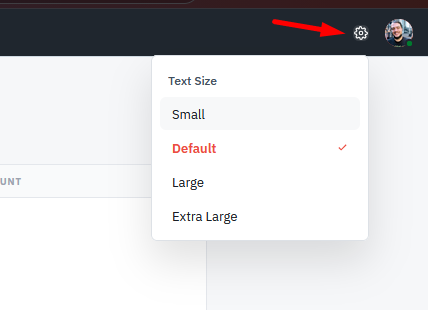
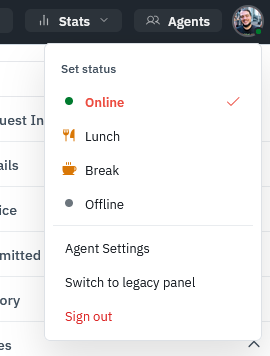
4. Adjust text size and Online/Offline
Click to adjust the text size of the interface:
Online/Offline this feature will allow you to set your status, custom agent settings, switch to the classic view, and Log out.
5. Main section where your information displays once clicked.