Is there an overview of the Reporting section?
2 minute read
Is there an overview of the Reporting section?
Welcome to our new and improved Reporting and Analytics!
This article will outline how to use the latest Reporting Dashboard. Here, you will find how to locate tools and functions with screenshots and full explanations. If you would like to schedule training for your staff, please reach out to Jared Brown [email protected]
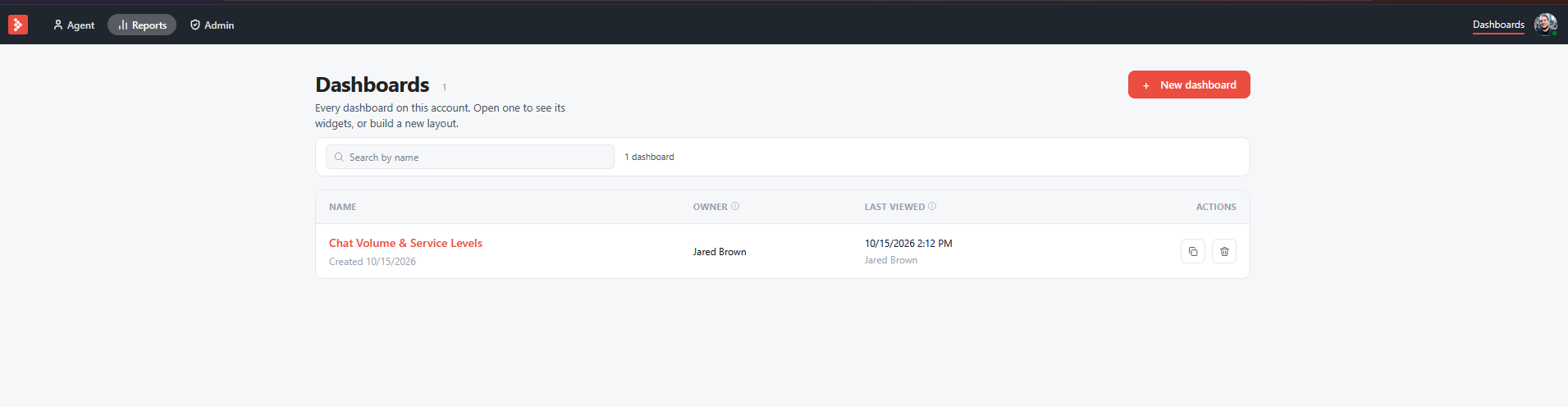
Getting started:
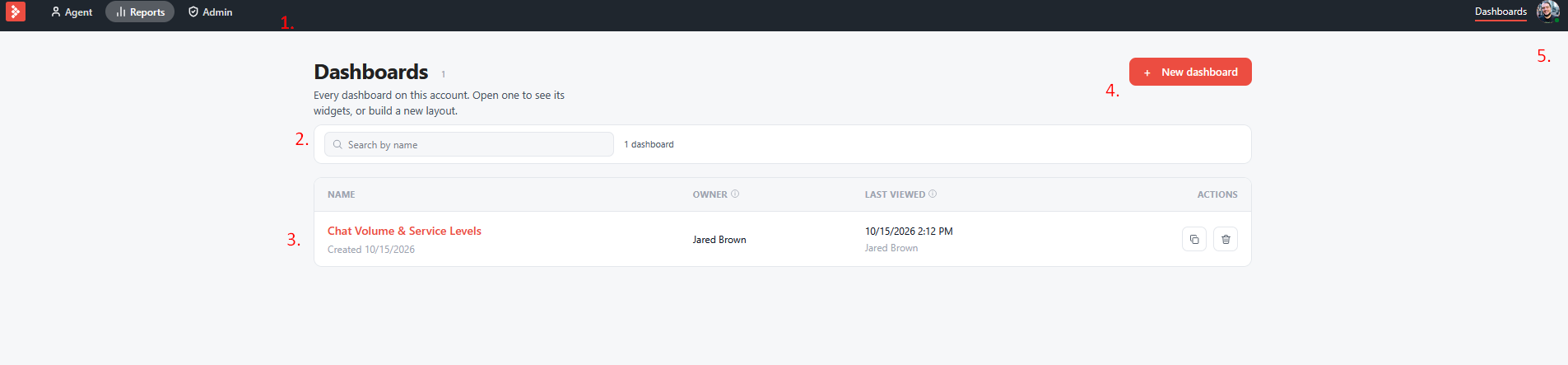
1. Navigation:
Agent will display the current workspace.
Reports will link to the analytics and reporting.
Admin will link to the Admin panel.
2. Search Allows you to search through the list of dashboards you have created.
3. Dashboards your individual reporting dashboards.
4. New Dashboard Click to create a new reporting dashboard.
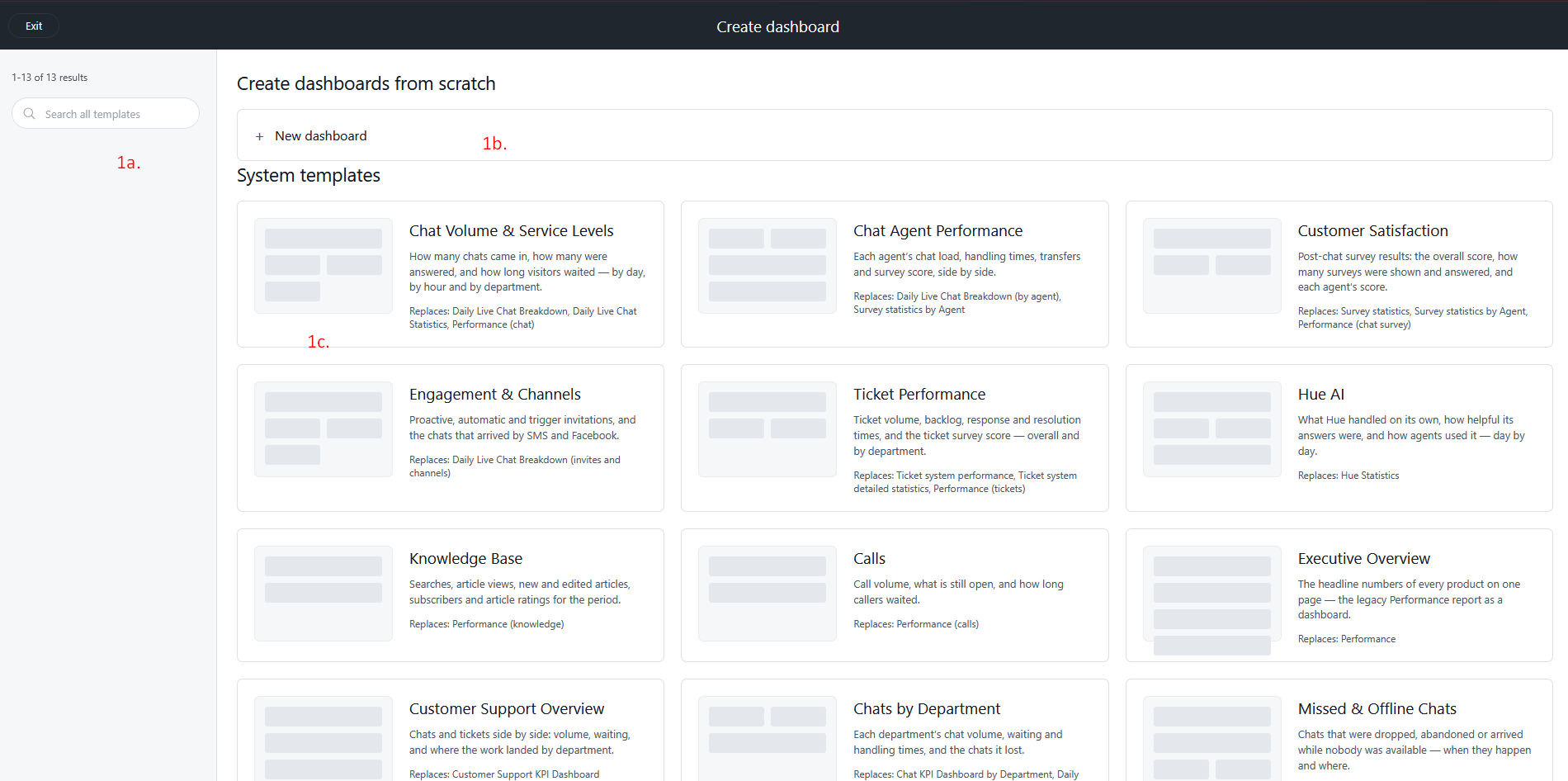
1a. Search quick search of all reporting templates.
1b. New Dashboard Click to create a new Dashboard and configure access permissions.
1c. System templates The individual reporting templates.
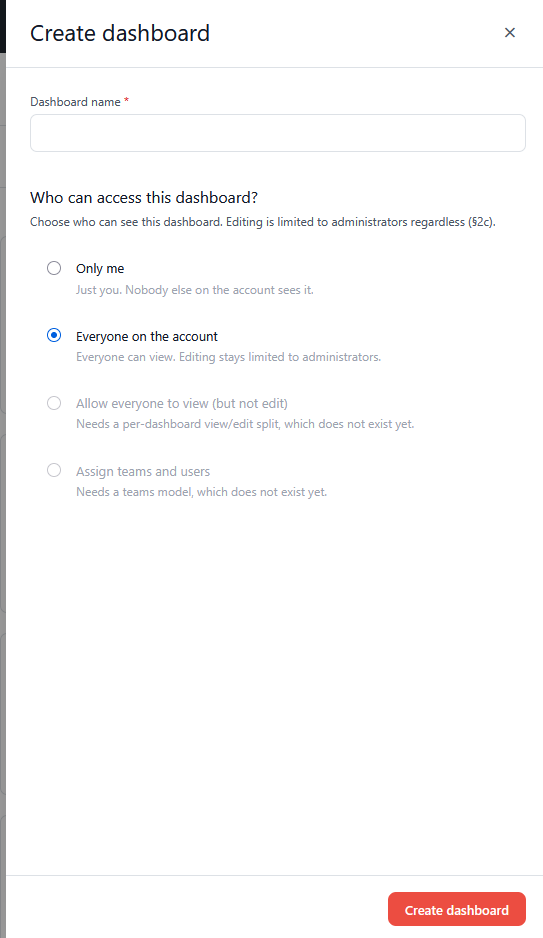
After you click "Create Dashboard" you will be taken to the configuration page:
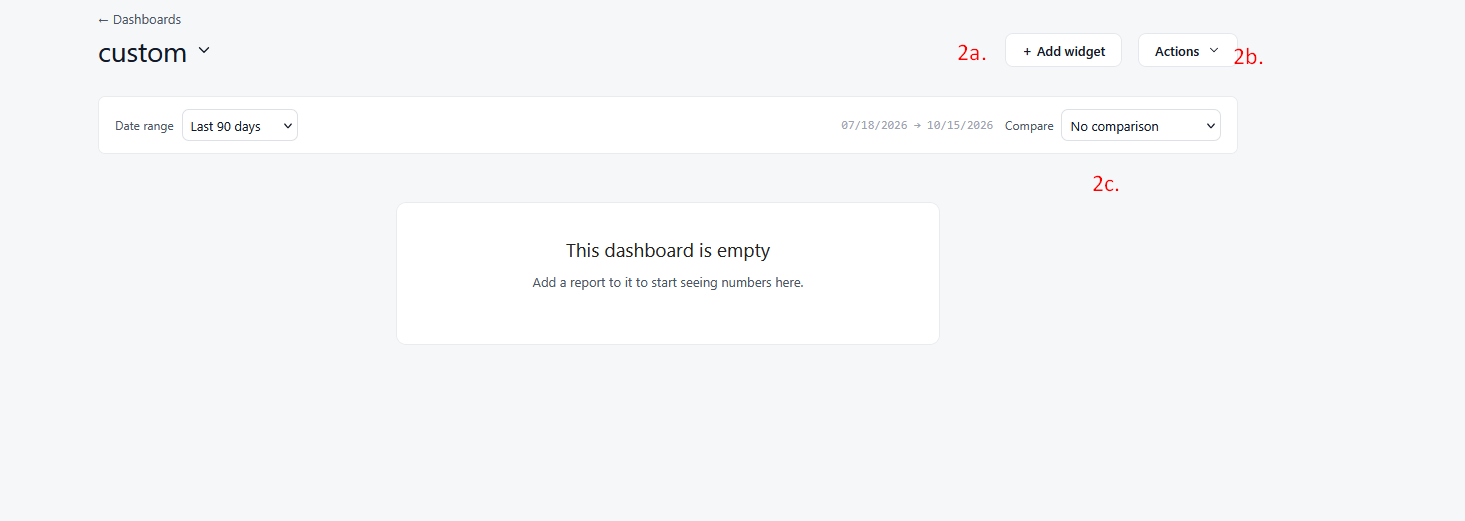
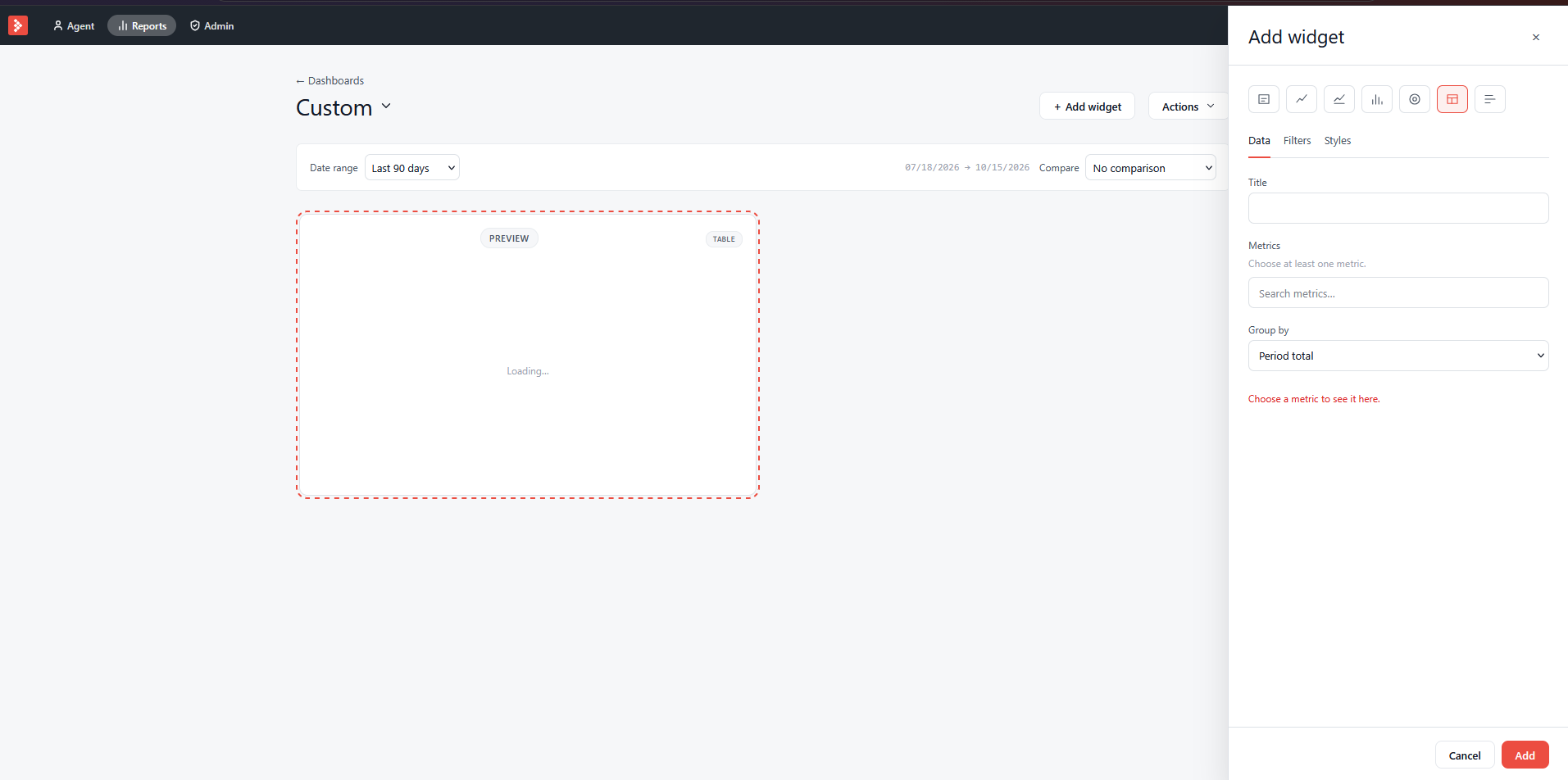
2a. Add Widget Allows you to create custom metrics for your dashboard which can include charts, graphs, leaderboards, and KPI numbers.
2b. Actions
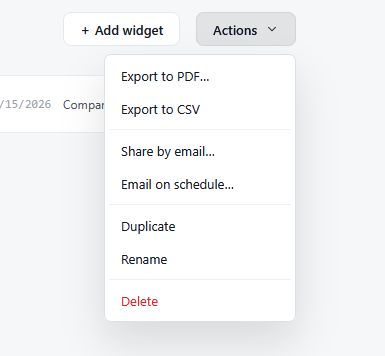
Export to PDF Allows you export the data to a PDF.
Export to CSV Allows you export the data to a CSV file.
Share by email Allows you to send this report to email.
Email on schedule Schedule your report emails to send daily, weekly, or monthly.
Duplicate Make a copy of the current widget.
Rename Update the name of the widget.
Delete Remove the widget.
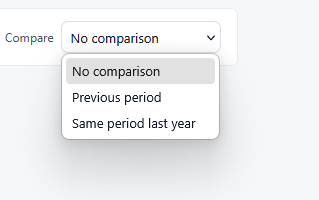
2c. Compare Review previous date ranges to compare data.
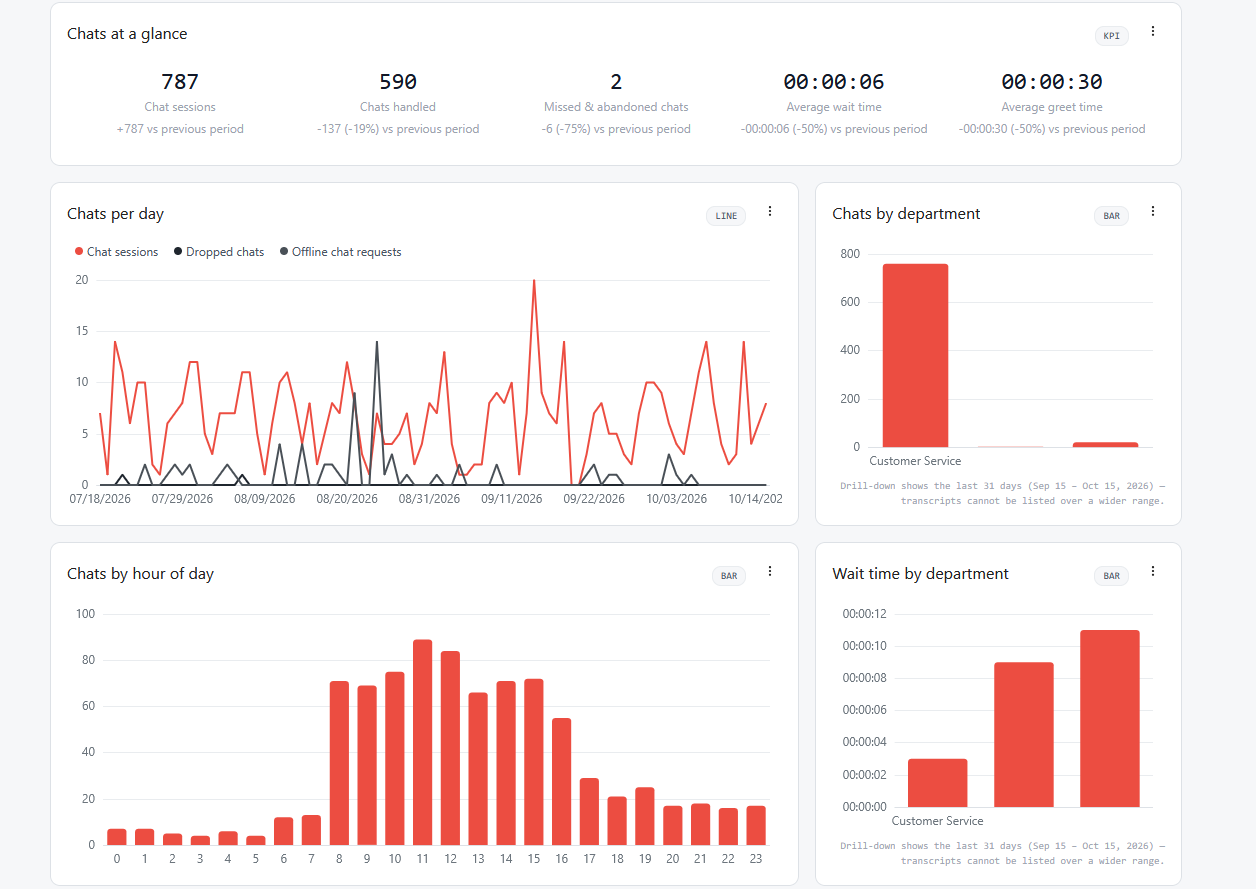
Example of a widget with data:
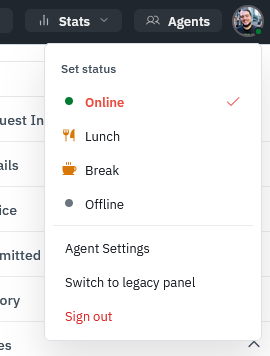
5. Online/Offline this feature will allow you to set your status, custom agent settings, switch to the classic view, and Log out.